Businesses today rely on smartphones, tablets, laptops, and other connected devices to keep employees productive. As the number of devices grows, keeping them secure and up to date becomes much harder. Setting up every device manually takes time and can lead to inconsistent configurations.
That’s where Mobile Device Management (MDM) software comes in. Instead of setting up each device individually, IT teams can remotely configure, monitor, and manage devices from a centralized platform. But how does MDM software work in a real business environment? Let’s walk through the process step by step:
Understanding How MDM Software Works
To understand how MDM software works, it helps to think of it as a secure connection between an organization’s management platform and its enrolled devices. Once a device is enrolled, administrators can remotely apply settings, install business apps, enforce security policies, and monitor the device throughout its lifecycle.
Think of MDM as a remote control for company devices. Rather than physically handling every smartphone or laptop, IT administrators can manage them from virtually anywhere, whether employees are working in the office, at home, or on the road.
This centralized approach is also recommended by the UK’s National Cyber Security Centre (NCSC), which advises organizations to use MDM solutions to consistently configure devices, enforce security policies, and simplify ongoing administration across their mobile fleet. Adopting centralized management helps reduce configuration errors while making it easier to maintain security standards as the number of managed devices grows.
Step 1: Enrolling the Device
Before MDM can manage a device, it must first be enrolled with the organization’s management platform.
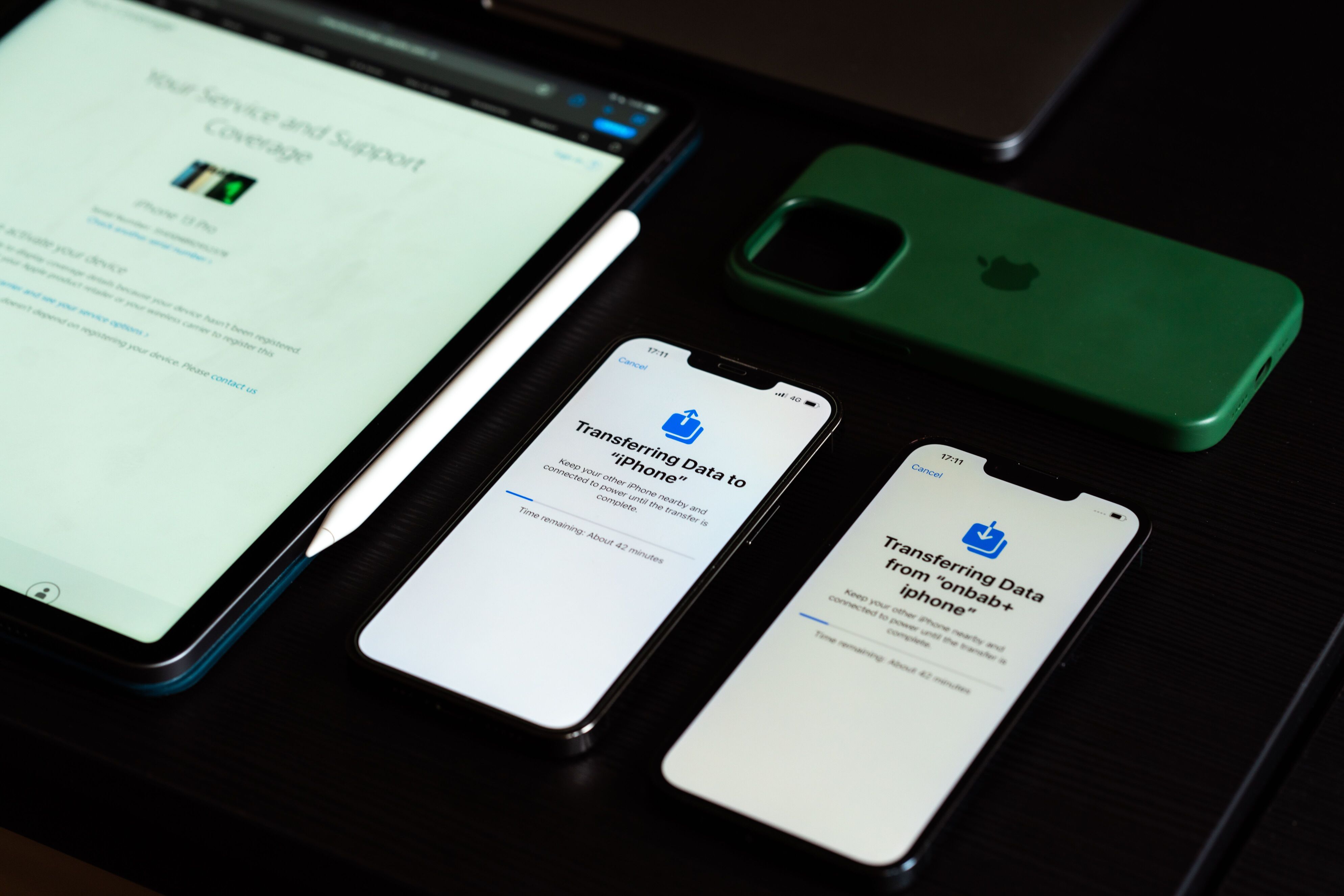
Enrollment tells the device which company it belongs to and establishes a trusted connection between the device and the MDM solution. Depending on the organization, enrollment may happen in several ways. Employees might manually sign in using their work credentials, scan a QR code, or receive an enrollment link from IT. Many businesses also use zero-touch enrollment, allowing devices to automatically enroll during their initial setup.
For example, when a new employee receives a company-issued smartphone, they may only need to connect it to Wi-Fi and sign in with their work account. The device then enrolls automatically without requiring IT to configure it in person.
Step 2: Applying Company Settings
Once enrollment is complete, the MDM platform begins configuring the device.
Instead of asking employees to manually adjust settings, MDM automatically applies the organization’s preferred configurations. These may include Wi-Fi credentials, VPN settings, email accounts, security requirements, and password policies.
The device may also receive restrictions that help protect company data. For instance, a business may require device encryption, enforce a minimum passcode length, or prevent users from disabling certain security features.
By applying the same policies to every enrolled device, organizations can maintain consistent security standards across their entire fleet.
Step 3: Installing Business Apps
Most employees need more than just a device—they also need the right applications to do their jobs.
MDM software allows administrators to remotely install, update, and remove business apps without requiring employees to download them manually. This helps ensure everyone has access to the latest versions of approved applications.
Imagine a new sales representative joining your company. Rather than spending an hour downloading Microsoft Outlook, Microsoft Teams, a CRM app, and other work tools, those applications are automatically installed as part of the enrollment process. By the time the employee finishes signing in, everything they need is ready to use.
Step 4: Monitoring Device Health and Compliance
After a device is configured, MDM continues working behind the scenes.
Administrators can monitor whether devices remain compliant with company policies. For example, the MDM platform can identify devices running outdated operating systems, missing required security settings, or falling out of compliance with organizational standards.
Contrary to a common misconception, MDM isn’t designed to monitor everything an employee does. Its primary purpose is to help organizations manage and secure business devices and corporate data. What administrators can see depends on how the device is enrolled and the organization’s policies. For example, a company-owned device may be managed differently from a personal device used under a BYOD policy.
This ongoing visibility allows IT teams to identify potential issues before they become security risks.
Step 5: Managing Devices Remotely
One of MDM’s biggest advantages is the ability to manage devices without physically accessing them.
From a centralized dashboard, administrators can remotely lock devices, reset passwords, deploy software updates, install new applications, or remove corporate data when necessary.
For example, if an employee loses a company phone while traveling, IT can remotely lock the device to prevent unauthorized access. If the device cannot be recovered, administrators may remotely erase corporate data to help protect sensitive business information.
This remote management capability is especially valuable for organizations with hybrid or remote workforces.
How Does MDM Software Work on Apple and Android Devices?
Whether you’re using an iPhone or an Android phone, the overall process is similar. The biggest difference is the technology each platform uses behind the scenes.
On Apple devices, MDM uses Apple’s built-in management framework to configure settings, deploy apps, enforce security policies, and manage iPhones, iPads, and Macs remotely. Many organizations also use Apple Business Manager and Automated Device Enrollment (ADE) to automatically enroll company-owned devices during setup.
On Android, MDM commonly works through Android Enterprise. Organizations can manage personal devices using a Work Profile or fully manage company-owned devices. Many businesses also use Android Zero-touch Enrollment to automate device deployment and apply company settings from the moment a device is activated.
Regardless of the platform, MDM allows administrators to securely configure devices, deploy applications, enforce policies, and support users throughout the device lifecycle. This is also why MDM is important for organizations with remote or hybrid teams, where IT can’t always configure devices in person.
How MDM Software Keeps Business Devices Under Control
Now that you understand how MDM software works, it’s easier to see why it has become an essential tool for modern businesses. It enables organizations to securely manage enrolled devices from a centralized platform. From enrollment and app deployment to security enforcement and remote support, MDM simplifies device management throughout the entire device lifecycle.
Whether your organization uses Apple, Android, Windows, or a mix of platforms, MDM helps reduce IT workload while keeping business devices secure and compliant. As businesses continue to support remote and hybrid work, it has become one of the easiest ways to manage devices at scale.