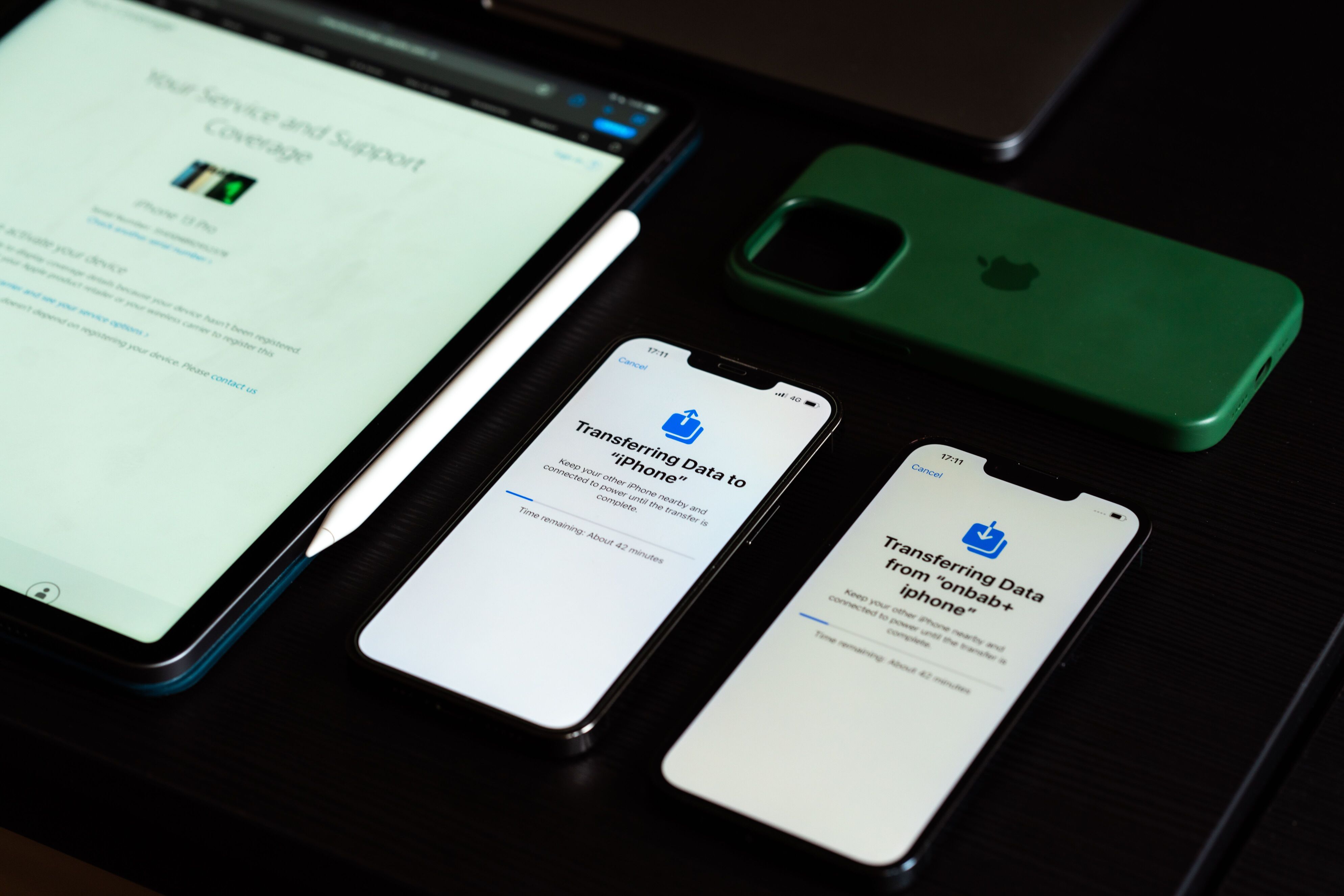
Imagine hiring 50 new employees and having to set up every laptop and smartphone by hand. Someone has to unbox each device, install company apps, configure security settings, and make sure everything is ready before it reaches the employee. Now with zero-touch enrollment, you can ship those devices straight from the manufacturer, with each one automatically configuring itself the first time it turns on.
Learn how zero-touch enrollment works and which devices support it. You’ll also see why businesses use it to simplify device deployment.
From Box to Business-Ready: What Is Zero-Touch Enrollment?
Zero-touch enrollment is an automated deployment process that prepares business devices for use without requiring IT to configure them manually. Instead of setting up each device one at a time, administrators create deployment profiles in advance.
Employees powering on their new device automatically enroll in the company’s MDM or UEM platform upon connecting to the internet. From there, the device downloads everything it needs to get started. It goes straight from the manufacturer or reseller to the employee’s desk, saving valuable time for both IT teams and new hires.
Several major device ecosystems support Zero-touch enrollment, including:
- Android through Android Zero-touch Enrollment.
- Apple through Automated Device Enrollment (ADE) in Apple Business Manager.
- Windows through Windows Autopilot.
While each platform has its own enrollment process, they all share the same goal: making new devices business-ready with minimal manual intervention.
How Does Zero-Touch Enrollment Work?
Although the setup process varies slightly between platforms, the overall workflow is remarkably similar. Behind the scenes, the process is surprisingly straightforward:
First, an organization purchases compatible devices from an authorized reseller or supplier. The company’s enrollment account is linked to the devices before delivery. Next, IT administrators assign deployment profiles that specify how each device should be configured. These profiles typically include Wi-Fi settings, security policies, required applications, user permissions, and enrollment into the organization’s MDM or UEM solution.
When the employee receives the device, they simply power it on and connect to the internet. During setup, the device automatically detects that it belongs to an organization, contacts the appropriate enrollment service, and downloads its assigned configuration.
The device is already configured by the time the employee reaches the home screen. It will have the company’s apps, security settings, and management policies, all without anyone in IT having to touch it.
Why Businesses Are Adopting Zero-Touch Enrollment
The biggest advantage of zero-touch enrollment is simple: it removes repetitive work from the deployment process.
Faster Device Deployment
Setting up dozens of devices manually can take days. This method lets IT teams ship factory-sealed devices directly to employees, dramatically reducing the time between delivery and productivity.
Consistent Security
Every enrolled device receives the same security policies, applications, and compliance settings. This helps eliminate configuration inconsistencies that often occur with manual setup.
Simplified Remote Onboarding
Remote employees no longer need to visit an office before receiving a company device. Whether they’re working across town or across the globe, devices can be securely deployed with little to no IT involvement.
Reduced Administrative Work
Automating enrollment frees IT teams from repetitive setup tasks, allowing them to focus on strategic projects instead of manually provisioning devices.
Better Employee Experience
There’s no need to wait for IT to configure a new laptop or phone. Employees can often sign in and start working within minutes of opening the box.
Which Devices Support Zero-Touch Enrollment?
Zero-touch enrollment supports a wide variety of business devices.
Smartphones
Android smartphones support Android Zero-touch Enrollment. Apple devices deploy Apple’s Automated Device Enrollment.
Tablets
Businesses commonly deploy Android tablets and iPads for retail, healthcare, education, and field service environments using automated enrollment.
Laptops and Desktop Computers
Windows devices support automated provisioning through Windows Autopilot. Mac computers, on the other hand, are enrolled through Apple Business Manager and a compatible MDM solution.
Purpose-Built Business Devices
Many rugged handheld computers, barcode scanners, digital signage displays, and dedicated kiosk devices also support automated enrollment through enterprise mobility management platforms, helping organizations deploy specialized hardware at scale.
Where Zero-Touch Enrollment Delivers the Greatest Value
Nearly every industry managing large numbers of devices can benefit from automated enrollment.
Retail
Opening a new store often means deploying multiple tablets, scanners, and POS devices at once. The solution allows every device to arrive preconfigured without requiring on-site IT support.
Hospitals can quickly provision tablets and mobile devices used by doctors, nurses, and administrative staff while ensuring every device meets organizational security standards.
Education
Schools and universities can distribute hundreds of student devices that automatically configure themselves with educational apps and network settings.
Delivery drivers and field technicians can receive preconfigured smartphones or rugged handheld devices without visiting company offices.
Corporate Enterprises
Businesses with remote or hybrid employees can ship laptops and smartphones directly to new hires, allowing them to begin work almost immediately.
Is Zero-Touch Enrollment Secure?
Automating device setup doesn’t mean sacrificing security. In fact, many organizations adopt zero-touch enrollment because it helps enforce security policies from the moment a device is first activated.
Because devices automatically enroll into an MDM or UEM platform during setup, administrators can immediately enforce password requirements, encryption, application management, and compliance rules. This reduces the likelihood of employees using unsecured devices to access sensitive business resources.
Organizations can also remotely update policies, deploy software, monitor compliance, and remove corporate data if a device is lost, stolen, or reassigned.
While this solution simplifies deployment, its security ultimately depends on well-designed management policies and proper integration with the organization’s identity and device management systems.
Best Practices for Zero-Touch Enrollment
Like any enterprise technology, successful implementation requires planning.
Organizations should purchase supported devices through authorized channels to ensure enrollment eligibility. They should also establish clear deployment profiles. These will include security settings, required applications, and compliance policies before devices are distributed.
Integrating zero-touch enrollment with an MDM or UEM platform allows administrators to manage devices throughout their entire lifecycle—from initial deployment to software updates, troubleshooting, and eventual retirement.
Finally, organizations should regularly review enrollment policies to ensure they continue meeting evolving security requirements and business needs.
Why Zero-Touch Enrollment Matters
Setting up business devices no longer has to be a slow, hands-on process. With zero-touch enrollment, organizations can ship devices directly to employees, automate setup, and apply consistent security policies before work even begins.
Whether you’re deploying smartphones, tablets, laptops, or specialized business devices, it helps reduce IT workload, speed up onboarding, and create a smoother experience for everyone involved. As more organizations embrace remote and hybrid work, it’s quickly becoming a standard part of modern device management.