Buying new iPhones, iPads, or Macs is only the beginning. Before employees can start using them, IT teams need a reliable way to enroll those devices, apply security settings, and install the apps required for work.
If you’re wondering how to add devices to Apple Business Manager, this guide explains the most common methods, how Automated Device Enrollment works, and how the system integrates with your Mobile Device Management (MDM) solution.
What Is Apple Business Manager?
Apple Business Manager (ABM) is Apple’s free web portal for organizations that deploy work devices at scale. It gives IT teams a central place to organize company-owned iPhones, iPads, and Macs, purchase and distribute apps, create Managed Apple Accounts, and prepare devices for deployment.
Apple Business Manager doesn’t actually manage devices on its own. Instead, it works alongside an MDM solution, allowing organizations to automate enrollment and simplify large-scale Apple deployments. Apple also highlights Apple Business as a way to streamline device management, app distribution, and employee onboarding, making it easier for organizations to deploy and support Apple devices throughout their lifecycle.
Is Apple Business Manager an MDM?
No. Although Apple Business Manager and MDM work closely together, they serve different purposes.
Apple Business Manager helps organizations:
- Register company-owned Apple devices.
- Assign devices to an MDM server.
- Purchase and distribute apps and books.
- Manage Managed Apple Accounts.
An MDM solution is responsible for:
- Deploying security policies.
- Installing business applications.
- Configuring Wi-Fi, VPN, and email settings.
- Enforcing compliance requirements.
- Managing devices throughout their lifecycle.
A simple way to think about it is this: Apple Business Manager prepares devices for deployment, while your MDM platform manages and secures them after they’re enrolled.
How to Add Devices to Apple Business Manager
There are several ways to add devices to Apple Business Manager, depending on how they were purchased.
Purchase Through Apple or an Authorized Reseller
If you buy equipment directly from Apple or an authorized reseller participating in Apple’s enrollment program, adding them to Apple Business Manager is usually straightforward. After the reseller assigns the items to your organization’s Apple Business Manager account, they typically appear automatically in your device inventory.
This saves IT teams from manually registering every iPhone, iPad, or Mac before deployment.
Add Existing Devices with Apple Configurator
Already have Apple devices that weren’t purchased through Apple’s enrollment program? Apple Configurator lets organizations manually add many eligible iPhones, iPads, and Macs to Apple Business Manager.
Once the devices have been added, they can be assigned to your MDM solution and managed alongside the rest of your Apple fleet.
How Apple Business Manager Works with Automated Device Enrollment
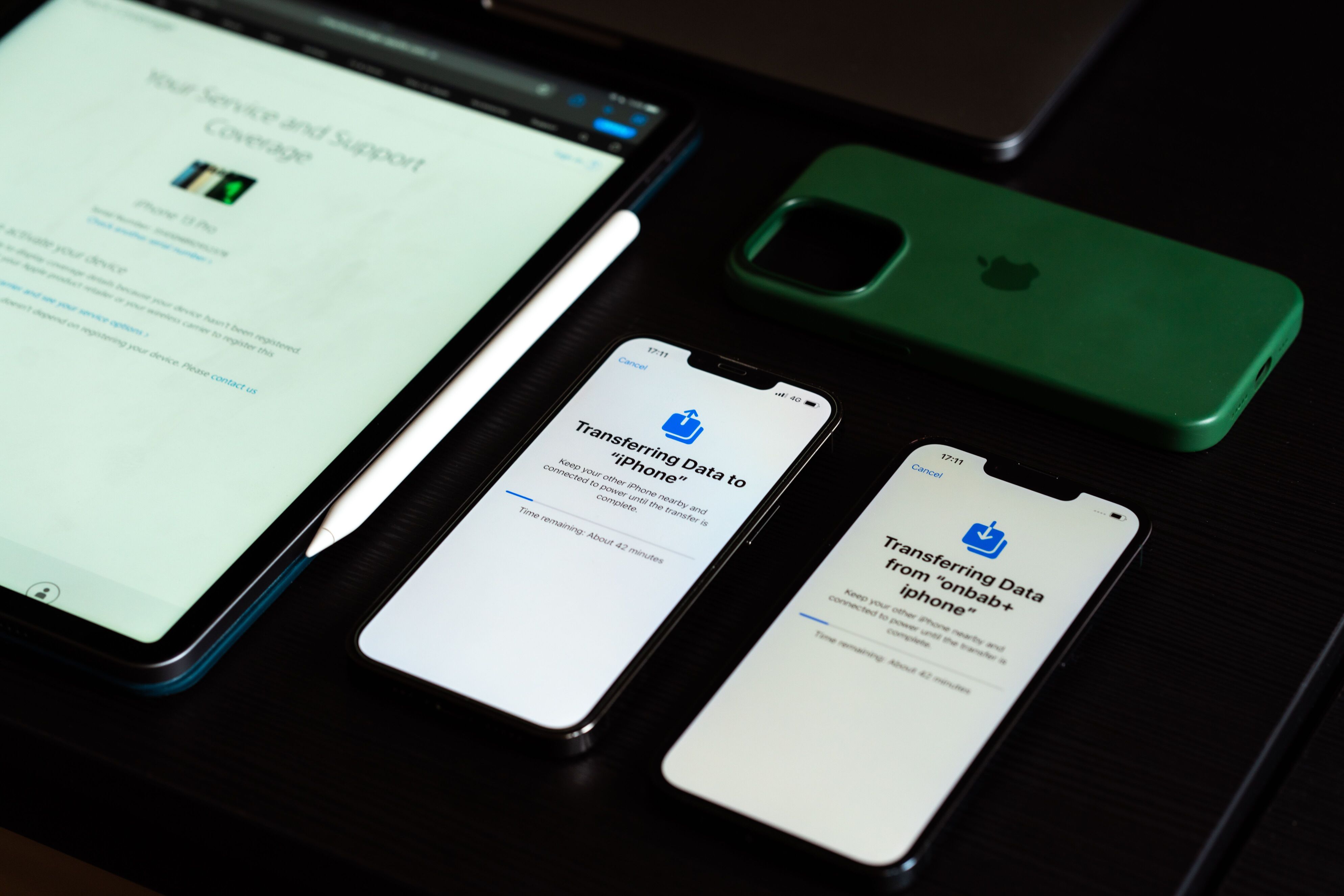
Once devices have been added to Apple Business Manager, they can be assigned to an MDM server for Apple Business Manager Automated Device Enrollment (ADE).
When employees turn on a device and connect it to the internet, enrollment begins automatically. During setup, the device connects to the assigned MDM platform, allowing IT administrators to remotely deploy security policies, install required business apps, configure settings, and prepare the device for work.
Because little or no manual configuration is required, this process is often referred to as zero-touch enrollment.
How to Connect Your MDM to Apple Business Manager
Before devices can enroll automatically, you’ll need to connect your MDM platform to Apple Business Manager.
The exact steps vary between MDM providers, but the overall process is very similar:
- Create an MDM server within Apple Business Manager.
- Upload your MDM provider’s public key.
- Download the server token generated by Apple Business Manager.
- Import the server token into your MDM platform.
- Assign devices to the appropriate MDM server.
Once the connection is complete, newly assigned devices can automatically enroll during activation.
Best Practices for Managing Apple Devices
To make deployments smoother and reduce manual work, consider these best practices:
- Purchase devices through Apple or authorized resellers whenever possible.
- Use Automated Device Enrollment for new company-owned devices.
- Organize devices by location, department, or business unit within Apple Business Manager.
- Keep Apple Business Manager locations and device assignments organized as your deployment grows.
- Test your enrollment workflow before rolling it out to employees.
- Keep your MDM server connection and enrollment tokens up to date.
Following these practices helps ensure devices are deployed consistently while reducing the workload for IT teams.
Streamline Apple Device Deployments
Apple Business Manager simplifies one of the most time-consuming parts of deploying Apple devices. By adding them to Apple Business Manager and connecting them to an MDM solution, organizations can automate enrollment, reduce manual setup, and maintain consistent device configurations from day one.
Whether you’re deploying a handful of iPhones and tablets, or managing thousands across multiple locations, combining Apple Business Manager with MDM provides a scalable foundation for secure, efficient, and hassle-free Apple device management.